Privacy guides
How to check which iPhone apps can see your photos
Review Photos permissions on iPhone, choose a smaller permission where it fits, and understand what revoking access can and cannot change.
Review the permissions you already granted
Start with apps you used once, such as an editor you installed to make a profile image. An app may still have the library permission you granted for that job. Apple’s privacy settings let you review requests by data type and change future access. An app generally appears in the list after it has requested the corresponding permission.
- In Settings, open Privacy & Security, then Photos. Select an app that has requested access.
- Choose the smallest option available for your use. Depending on the app and iOS version, you may see full access, limited access to selected photos, or no access. Some apps request permission to add photos without reading your library.
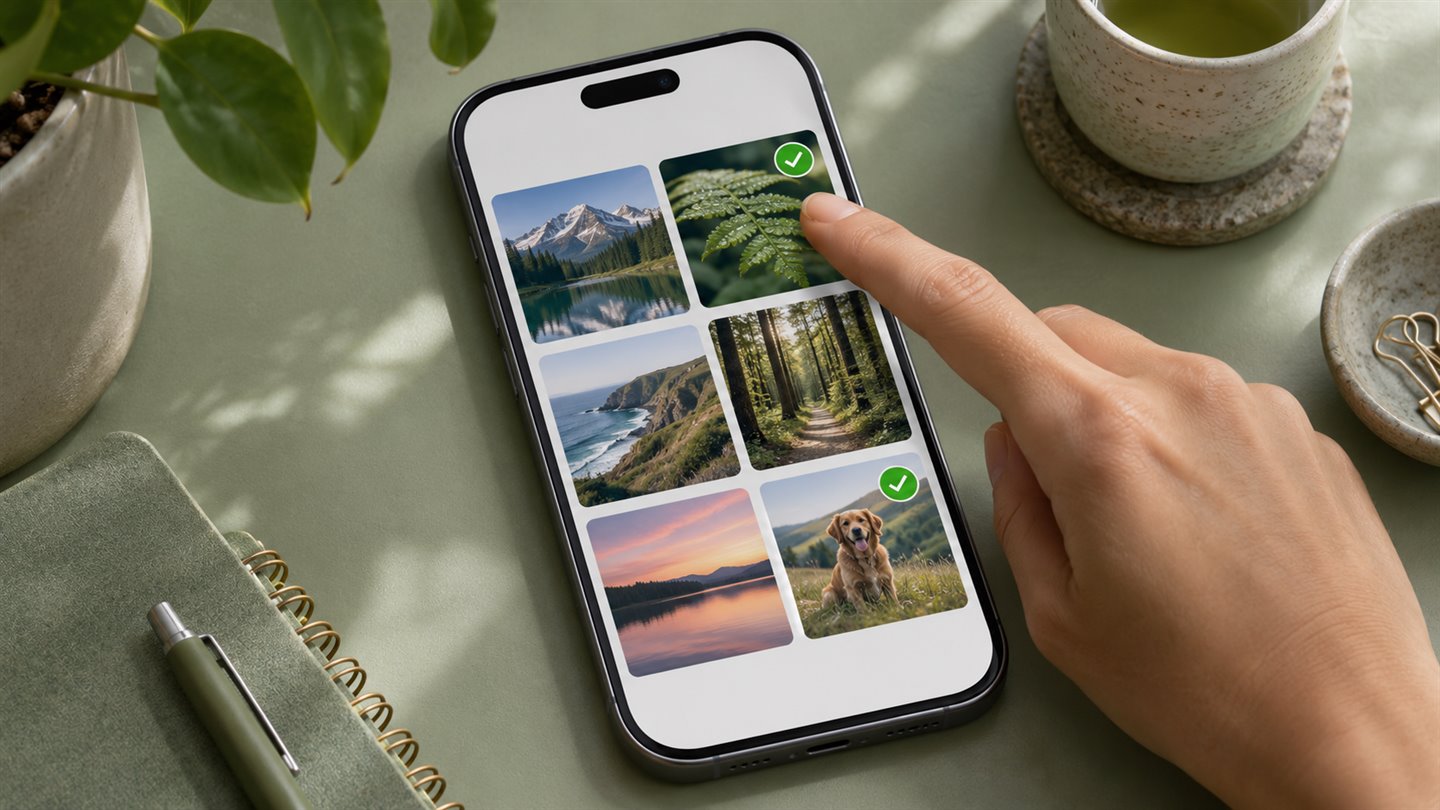
- If you choose limited access, review the selected items. Open the app and try the task you use it for before widening the permission.
Match the permission to the task
An app that only needs a portrait for your profile can usually work with a selected image. Apps using Apple’s system picker can let you browse the library inside that picker while receiving only what you choose. By contrast, an app you deliberately use to organise your entire library may need broader access. Decide which task justifies the permission rather than treating every request the same way.
Permissions also differ from choices made during sharing. You may intentionally send an image that includes a street sign, visible document text, or metadata. Limiting library access leaves those details in the image you choose, so review a copy intended for sharing.
Consider what the app received before you changed access
Revoking access controls future library access through that permission. It does not retrieve a file you already sent or delete an app’s saved or uploaded copy. Use the app’s own settings or the service’s account controls if you need to manage retained files.
If you want more context, turn on App Privacy Report from Privacy & Security. The report starts collecting after you enable it. It can show data access and network activity, but a domain in the report does not identify which file, if any, was transferred.
A few things worth knowing
Why can I pick a photo for an app that has no library permission?
An app can use Apple’s system picker to receive the files you select without requesting access to browse the library itself.
Will changing a permission remove photos I previously uploaded?
No. Check the app or account where you uploaded them and manage those copies there.