Scenarios
How to send an iPhone screenshot without exposing private details
Choose what a support agent or recipient needs, crop or cover the rest, and verify the exact exported file before you attach it.
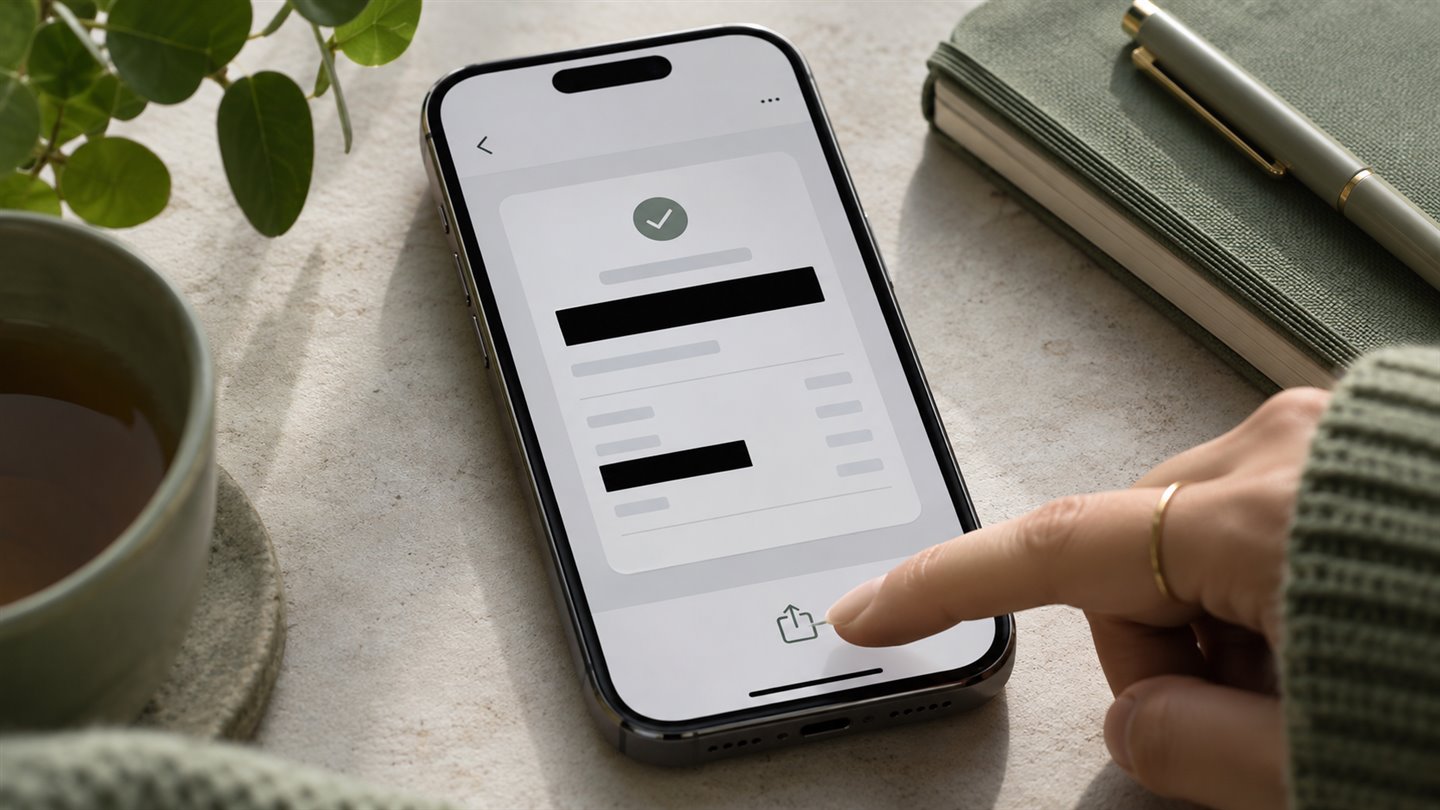
Decide what the recipient actually needs
A support agent asks for a screenshot showing why a payment page fails. They may need the error message, the app name, and the time of the error. A full account screen can also expose a balance, an address, or the names of recent payments. Ask whether the error text alone would be enough. If you need an image, capture the smallest view that still explains the issue.
Scan the edges as well as the middle. A notification banner, account avatar, QR code, document tab, or a URL with a token can reveal information that has nothing to do with the problem. Include a reference number only when the recipient needs it and you are using their verified support channel.
Crop first, then cover details inside the crop
Use the screenshot editor’s crop control to remove edges you do not need. If sensitive details remain next to the error, use a solid opaque cover. A translucent stroke can leave characters legible. Cover the full width of the value and inspect the result at higher magnification.
When using SeraShield Photo Studio, choose the screenshot, draw solid covers over the sensitive regions, and export a new image. The tool processes the image in the browser. Use a new file and check the exported result instead of relying on the editable project or on what the preview showed.
- Reopen the exported attachment in a different view, such as Files or a message draft, and zoom in.
- Check for a second copy of the same detail elsewhere in the image, including in a QR code, barcode, header, or repeated account label.
- Read the filename, review the chat or email recipients, and confirm that the attachment is the edited copy.
- Keep the unedited original only if you need it, and store it separately from the file you intend to send.
Check how the share option handles the original
When sharing from Photos, Apple’s All Photos Data option can include the original and edit history for AirDrop or an iCloud link. Attach your checked export instead of sending an edit that depends on the recipient seeing the same view. If you also want to limit location metadata for a photo, check the share options separately. That setting leaves any location written in the image untouched.
A few things worth knowing
Will turning off location hide an address written on screen?
No. A visible address is part of the pixels. Crop it out or cover it on the exported copy.
What if the screenshot contains a login or recovery code?
Prefer an image that never captures the code. If you already sent a usable secret, review the account provider’s guidance for replacing or revoking it.